Creating a Data Hub Query tool
You can create a tool that connects an AI agent to a Data Hub repository and its deployed model. The Data Hub Query tool retrieves active golden records based on field filter criteria using the Query Golden Records API endpoint and your specified deployed model and repository. It lets the agent fetch and share golden record data with users. If data is masked and the user does not have permission to view it, the agent may not be able to respond as expected.
An AI agent can use the Data Hub Query tool to query data that has been processed and governed in Data Hub. This ensures the agent accesses accurate, quality data when answering user queries or executing tasks.
Prerequisites
You must have the following privileges:
- Agent Developer role or a custom role Agent Garden Access, Agent Create, Agent Edit, Agent Feedback Submit, Agent Garden Feedback View
- Data Hub access
- To create Data Hub Query tools, you must have the following privileges:
- MDM - View Repositories
- MDM - View Models
- To query data or use the hub tool in an agent, you need at least one of the following permissions:
- MDM - View Data
- With Advanced User Security feature, you must have:
- View Records Hub entitlement for the repository you want to query
- MDM - Stewardship or MDM - Stewardship Management
Read Agent Garden: Getting Started for details on adding roles and setting up custom privileges.
Important considerations
-
Agentstudio truncates tool responses greater than 100K tokens.
-
Context window limitations: User prompt, agent goals, tasks, and instructions combined cannot exceed 200K input tokens.
-
The Data Hub Query tool can return up to 200 active golden records. Querying end-dated records and quarantined entities is not supported.
-
The tool only supports filtering by Field ID. Filtering by source ID, created date, updated date, or tag is not supported.
-
The tool does not support setting limit or offset for the returned records.
-
Each Data Hub Query tool represents only one specific query. For example, if you want an agent to query astronaut data by birth state and return records by the given state or query astronaut data by last mission name and return a list of records with the mission name, you must create two Query tools; one for the state query and one for the mission name query.
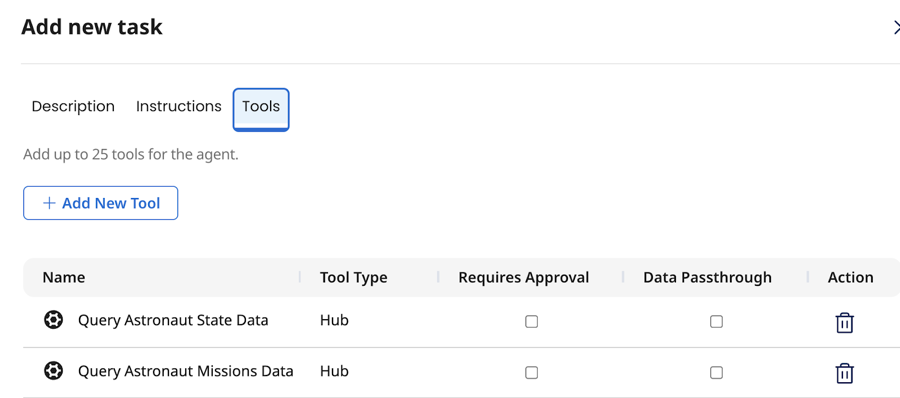
Create a Data Hub Query tool
Follow these steps to create a Data Hub Query tool.
- Navigate to Agent Garden > Tools and click Create New Tool.
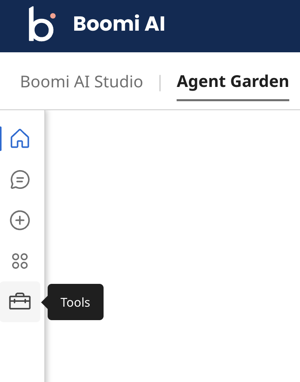
- Select Data Hub Query.
- Click Add Tool.
- Enter a Tool Name to identify your tool.
- Enter a description for the tool to help the Large Language Model (LLM) understand what the tool does.
- Optional: Click Add Input Parameter to have the agent ask the user for a value for a field filter. The tool can use a field filter value to query records. You can add up to five input parameters (filter fields).
- In Name, enter a name for the field you want to filter. For example, “city”. The name cannot have spaces.
- Enter a description for the field filter.
- Select the data type for the field in the Type drop-down (integer, boolean, string).
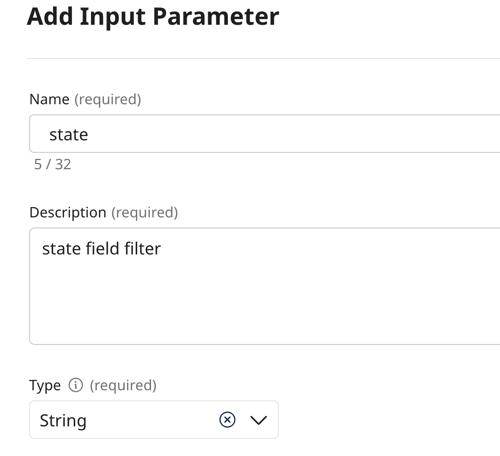
- Optional: Turn on the Required? toggle if the parameter value is required. This requires the agent to retrieve the input parameter value from the conversation before it can proceed.
- Click Add Input Parameter.
- Click Save & Continue.
- In Repository, select the repository that contains the golden records you want to query.
- In Model, select the deployed model associated with the golden records.
- Select the fields for which you want the agent to provide data. You have the option to select all next to the Fields column.
- Click Save & Continue.
- Optional: Click Add Filter to specify the filter criteria in which to query records. Filter by field name is supported. Other filtering options, such as filtering by tag or by source, are not supported.
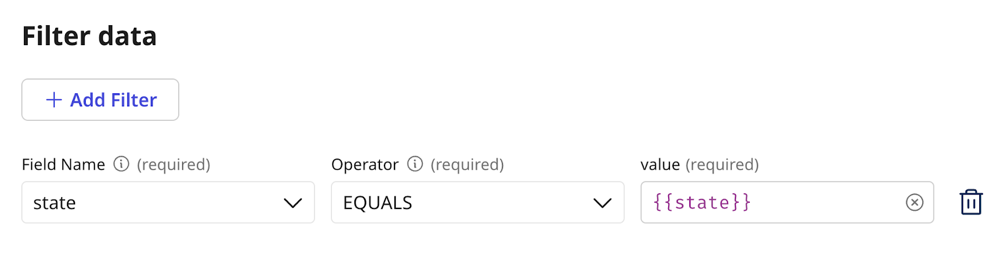
- Select the field name.
- Select an operator.
- In the value field do one of the following:
- Enter a static value.
- Select the value placeholder for the input parameter you created in step 6.
- If adding multiple filters, select the AND or OR operator. AND returns records that match all field names specified. OR returns records that match any of the field names specified.
- Click Save & Continue.
- Review your tool settings and click Deploy Tool to activate it and add it to agents. Deployed tools show as active in the Tools list view and are available in the Tools tab to attach to an instruction when you create an agent.
Next steps:
- Create another tool. Agents can use multiple tools to complete tasks.
- Build an agent
