Messaging options
You can customize message properties and the format received by recipients on the Messaging tab.
General
-
Separate emails limit - For tracking purposes, separate emails are created for each recipient if the message requires a link to MFT server and Request recipient login is turned off. The Separate emails limit setting prevents massive email generation by limiting the number of emails that it will send.
-
SMTP server message recipient limit - (Optional) If configured, MFT server will block any messages that exceed the limit. If a limit is not configured and a message exceeds the recipient limit, the SMPT server sends the message with a partial recipient list and the user will get an error message.
-
Request recipient login - You can request that a recipient who wants to download a link must log in first by configuring this setting.
- Never - No authenticaion for external download. For tracking, the system always generates separate emails for each recipient. You can choose to use a message password instead of login by checking Use message password instead of recipient login. After turning on message password, you can enforce it by checking Enforce message password.
- Always - External download always requires authentication. Users can use the Remember me option to skip authentication. The system never has to generate separate emails.
- User Choic - Request login is turned off by default, but the user can turn it on when sending a message. You can turn on request login by checking Request login from recipients by default, if 'User Choice' is selected.
-
Enabled message fields - Controls the availability of private and regular message options when composing an MFT message
- None - No message fields are available
- Regular - Only regular messages can be composed
- Regular and secure - Both regular and private messages can be composed
Domain Filter Mode
You can allow or block email domains for recipients of MFT secure emails. The lists are checked during recipient authentication or registration processes required to access MFT secure email.
The lists are mutually exclusive and either allow list or block list can be enabled.
- None - No email domains are filtered
- Email Domain Allow List - Only the specified email domains are allowed to receive secure emails.
- Email Domain Block List - The specified email domains are blocked from receiving secure emails
If a message is protected by a password and the recipient's email domain is on the allow list, no password will be requested. The allow list option is available only if Use message password instead of recipient login is checked.
Message Security
You can allow third-party links in web email messages by checking Allow third-party links. By default, third-party links are disabled for improved security.
Expired Messages
Enable expired email notification – enables or disables email notification of expired messages based on your preference.

Set "From" email address
Emails sent by MFT web application use the current user email address in the "From" field of outgoing emails.
Some spam and fishing filters may reject the emails since the MFT mail server is not registered as an outgoing email server for the current user email domain.
The setting allows to you set a custom email address in "From" field of outgoing emails to a thruinc.com email domain.
Dropbox Fields Customization
You can add custom fields to your Dropbox messages. Click the edit icon to open the Custom Dropbox Fields dialog.
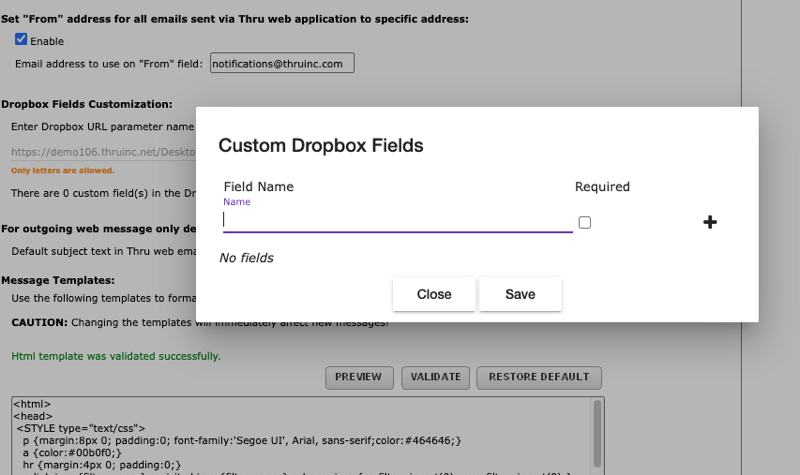
Custom fields are displayed in the message details when you create a Dropbox message and on the Dropbox page where you or the message recipient download the files.
Outgoing web message
You can set the default subject text in MFT web emails. This applies only to outgoing web messages on desktop and mobile.
Message Templates
You can customize the message format according to your business preferences. Use the templates provided in the Message Template and Text Template fields.
Changing the message and text templates immediately affects new messages.
Message template example
<html>
<head>
<STYLE type="text/css">
p {margin:8px 0; padding:0; font-family:'Segoe UI', Arial, sans-serif;color:#464646;}
a {color:#00b0f0;}
hr {margin:4px 0; padding:0;}
a:link img {filter:none;} a:visited img {filter:none;} a:hover img {-o-filter: invert(0); -ms-filter: invert(0);}
</STYLE>
</head>
<body>
<thru:headerSection>
<table style="width:600px; border-bottom:2px solid #00b0f0;padding-bottom:4px;">
<tr>
<td>
<thru:logoToken style="border:0;height:50px;" height="50" border="0" alt=""/>
</td>
<td style="width:465px;color:#464646; font-family:'Segoe UI', Arial, sans-serif;font-size:18px;text-align:right;">
<p style="line-height:20px;margin-top:28px;font-family:'Segoe UI', Arial, sans-serif;">Secure File Delivery</p>
</td>
</tr>
</table>
<table cellspacing="0" cellpadding="0" bgcolor="#FFFFFF" width="600" style="width:600px;" border="0">
<tr>
<td style="width:100%;font-size:12px; font-weight:normal; color:#464646; font-family:'Segoe UI', Arial, sans-serif;border-bottom:1px solid #00b0f0;padding-top:4px;padding-bottom:4px;">
<p style="font-weight:normal;color:#464646;font-family:'Segoe UI', Arial, sans-serif;"><thru:addressToken></thru:addressToken></p>
</td>
</tr>
</table>
</thru:headerSection>
<thru:linkSection>
<table cellspacing="0" cellpadding="0" bgcolor="#FFFFFF" width="600" border="0" style="width:600px;">
<tr>
<td width="600" valign="top" style="width:100%;" cellspacing="0" cellpadding="0">
<table cellspacing="0" cellpadding="0" width="600" valign="middle"><tbody>
<tr>
<td colspan="3" style="text-align:center;">
<p style="font-size:13px;color:#464646; font-family:'Segoe UI', Arial, sans-serif;font-weight:bold;line-height:1.25em;">You have just received files</p>
</td>
</tr>
<tr>
<td style="width:30px;"> </td>
<td valign="middle" style="text-align:center;color:#dddddd;background-color:#00b0f0;width:540px;">
<p style="text-align:center;font-size:13px; font-family:'Segoe UI', Arial, sans-serif; font-weight:normal;text-decoration:none;color:#464646;">
<thru:linkUrlToken>
<span style="color:#ffffff;text-decoration:none;font-weight:bold;">Click here to download your file(s)</span>
</thru:linkUrlToken>
</p>
</td><td style="width:30px;"> </td>
</tr>
<tr>
<td style="width:30px;"> </td>
<td style="width:540px;">
<p style="font-size:12px; font-weight:normal; font-style:normal; font-family:'Segoe UI', Arial, sans-serif; text-align:center;line-height:1.2em;">Or, copy this link to a browser: <thru:linkExplicitUrlToken/></p>
</td>
<td style="width:30px;"> </td>
</tr>
</tbody></table>
</td>
</tr>
</table>
</thru:linkSection>
<thru:bodySection>
<table cellspacing="0" cellpadding="0" border="0" width="600">
<tr>
<td colspan="3" style="height:10px;"> </td>
</tr>
<tr>
<td width="30"> </td>
<td width="540" align="left" valign="top" style="font-size:13px; font-family:'Segoe UI', Arial, sans-serif; color:#333333;">
<p><thru:bodyToken/></p>
</td>
<td width="30"> </td>
</tr>
</table>
</thru:bodySection>
<thru:footerSection>
<table width="600" cellspacing="0" cellpadding="0" border="0">
<tr>
<td style="width:100%;border-top:2px solid #00b0f0;border-bottom:2px solid #00b0f0;">
<p style="font-size:14px;font-weight:bold; font-family:'Segoe UI', Arial, sans-serif; color:#464646;">Tracking ID: <thru:trackingNumberToken/></p>
</td>
</tr>
<tr>
<td width="600" align="left" style="font-size:10px; font-family:'Segoe UI', Arial, sans-serif; color:#464646;">
<p>This email was sent by: <strong>Boomi.</strong><br>1 W Elm St ste 200, Conshohocken, PA 19428, United States</p>
<p>© Copyright 2025 Boomi. All rights reserved.</p></td>
</td>
</tr>
<tr>
<td width="600" align="left" style="font-size:10px; font-family:'Segoe UI', Arial, sans-serif; color:#464646;">
</td>
</tr>
</table>
<table cellpadding="0" cellspacing="0" width="600" border="0">
<tr>
<td><hr></td>
</tr>
<tr valign="top">
<td align="left" style="color:#737373; font-size:10px; font-family:'Segoe UI', Arial, sans-serif;">
<p><strong>About Boomi.</strong><br/>
Boomi provides powerful cloud-based services and solutions delivering enterprise class performance in global content delivery and management.<br />
<a href="http://www.boomi.com" style="color:#00b0f0; font-weight:bold; text-decoration:none;">www.boomi.com</a></p>
</table>
</thru:footerSection>
</body>
</html>
Text template example
<thru:headerSection></thru:headerSection>
<thru:linkSection>
This email includes secure access to files.
To access the files click on the following URL or copy it into your browser: <thru:linkExplicitUrlToken/>
</thru:linkSection>

<thru:bodySection>
---------------------------------------
<thru:bodyToken/>
---------------------------------------
</thru:bodySection>

<thru:footerSection>
<thru:addressToken>Other message recipients:</thru:addressToken>

Thru Tracking: <thru:trackingNumberToken/>
<thru:signatureToken/>
</thru:footerSection>
