General
The "General" tab lets you customize what you want to show on the Main Sign-in page, change the File System Purge Period, or customize other options.
MFT will no longer support file uploading or downloading with JAVA.
Viewing sign-in page information
You can view and configure the following sign-in page information:
- Title - The main title displayed on the front page
- Name - The site name displayed on the sign-in page
- Welcome Message - Customize a welcome message to display under the site name on the sign-in page. You can add instructions for clients or any other information you want to include in this space.
- Support link - Defaults to the MFT Support page. You can change it to redirect users to an alternative site.
- Browser tab label - Sets the label shown on the tab of the web browser
- Footer Message - The footer message displayed on the front page
- Mobile Site Name - The site name displayed on pages opened in mobile devices
- Mobile Site Welcome Message - Customize a welcome message to display under the mobile site name on pages opened in mobile devices
Setting file system purge period
The File System Purge Period setting determines how long deleted files are retained before they are automatically deleted from the system. Files can be restored during the configured grace period. Set the grace period length in hours.

Setting file types upload restrictions
Administrators can control file types that can be uploaded and block specific file types from being uploaded.

-
Mode - Select how you want to restrict file types
-
Filter off - All file types can be uploaded
-
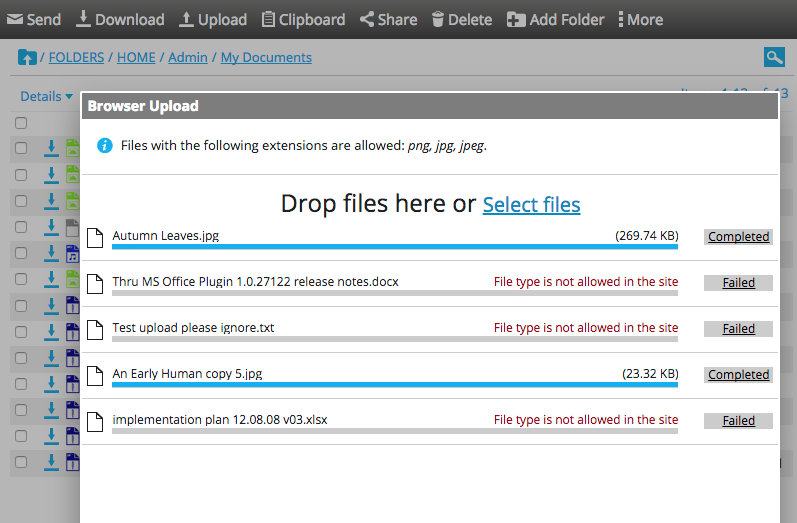
Allowed file types - Only files that match the extension(s) listed in the File Types text box can be uploaded
-
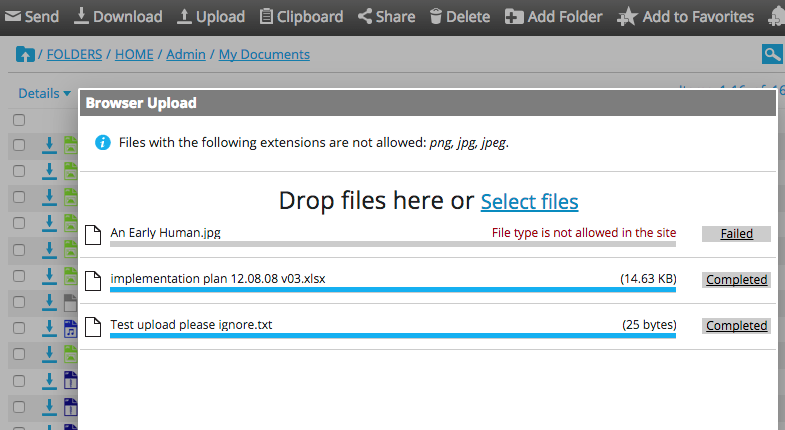
Blocked file types - Files with extensions listed in the File Types text box will be blocked and fail to upload with an error. You can also block file types with no extension
-
-
File Types - Enter file type extensions that you want to allow or block. Multiple file types can be separated by comma, semicolon, space, or newline.
Using Antivirus options
MFT scans files up to 250MB; larger files are skipped for performance reasons. This scanning limit can be adjusted based on the environment where the site is deployed. The files remain unavailable for download until scanning is complete.
By default, Deny download of the files until scanned by Antivirus is enabled.
Administrators can globally disable blocking until the file has been scanned by antivirus. If blocking is disabled, files will be available instantly for download but may not have been scanned yet.
