Selecting site options
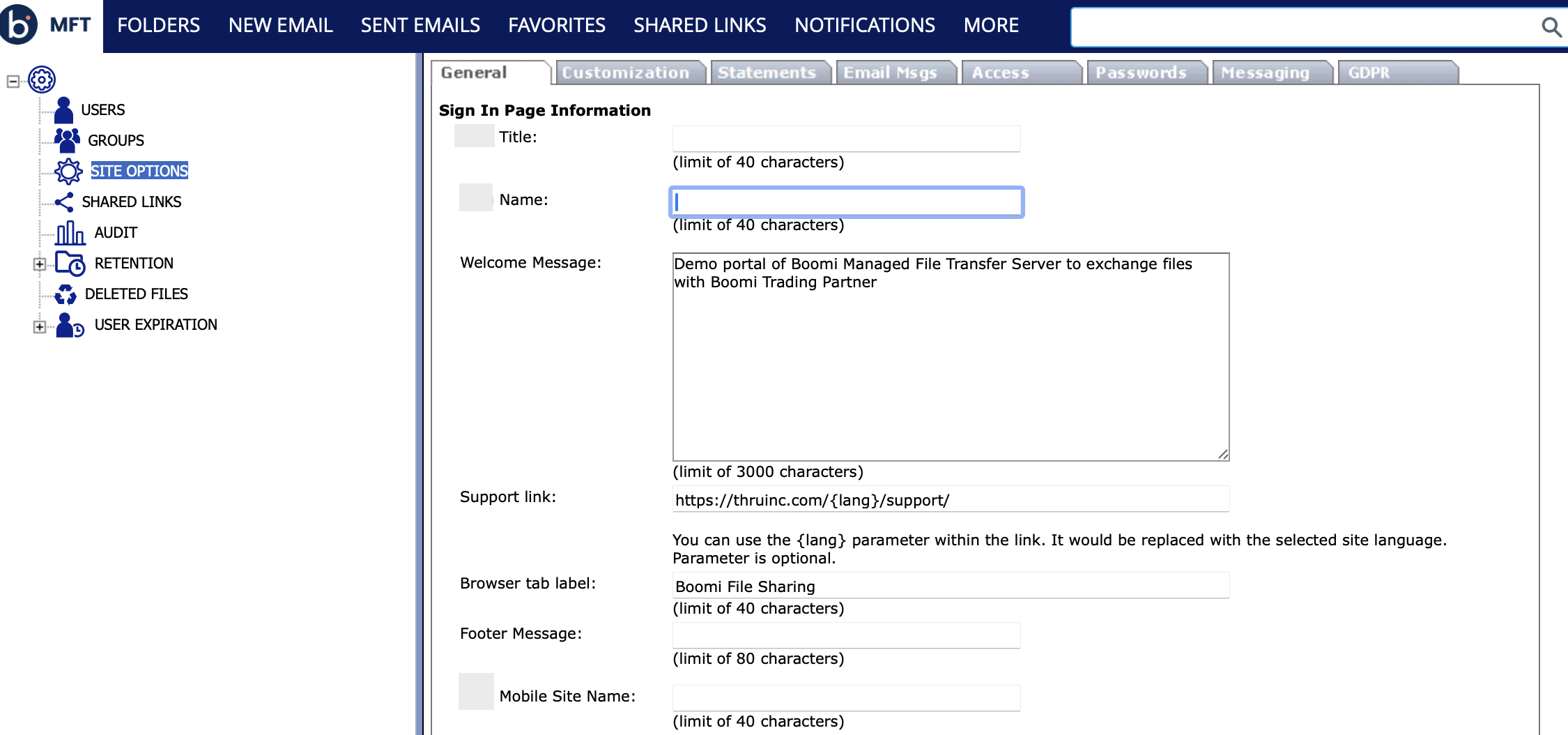
You can manage options for your File Sharing site from Site Options in the Administration dashboard.
General tab
You can customize what you want to show on the main login page, change the file system purge period, and other options from the General tab. Refer to General tab for more information.
Customization tab
From the Customization tab, you can add your company's logo to make it visible to clients when they download your files.
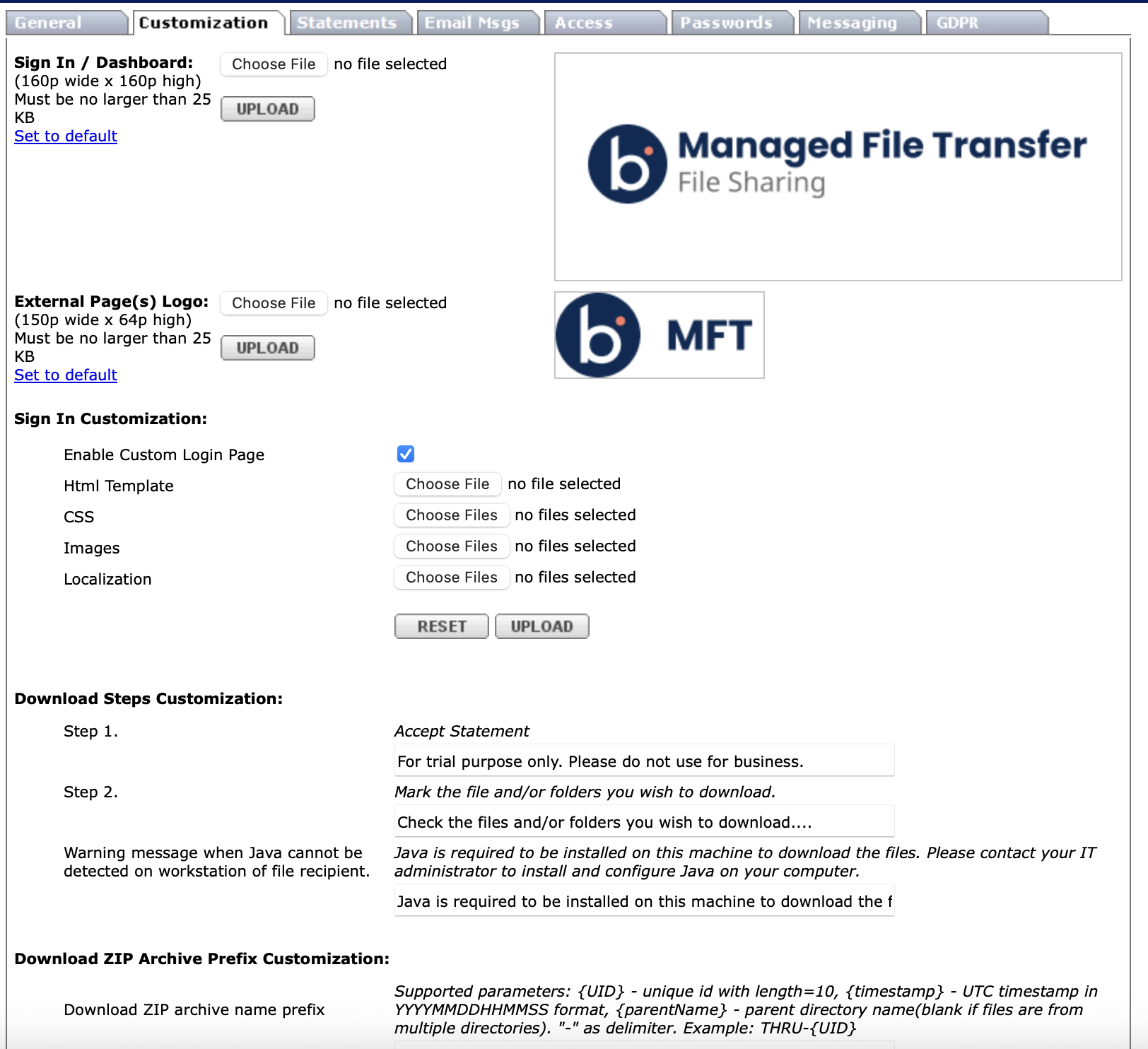
Image requirements
Be sure that your images meet the following requirements before you upload them:
-
Sign In/Dashboard - This logo is displayed on the main Sign In page and the dashboard after signing in.
- 160px x 160px
- .gif file no larger than 25 KB
-
External page(s) logo - This logo displays on the Download and MFT Dropbox upload pages.
- 150px x 64px
- .gif file no larger than 25 KB
Statements tab
You can add confidentiality statements, disclaimers, or instructions if your company requires them from the Statements tab. You can add these statements for:
- Distribution - Displayed when the recipient clicks on the link to collect files sent to them. They must accept the statement before they can download the files.
- MFT Dropbox - Displayed when someone uploads something to your MFT Dropbox. They must accept the statement before they can upload any files.
- Account User - Displayed when a new user clicks to create their password. They must accept this statement before they can log in to their File Sharing site.
You must select the Activate checkbox for the statements to be active.
Email Messages tab
You can configure automated email notifications related to user activity from the Email Messages tab.
-
Standard (Non-SSO) user activation - Customize the message sent when a new user account is activated.
-
Enter a message to display in an email when a new user receives it from the system.
-
When you turn on the "Show this text as default in Add User form" option, this text is automatically added to the "Message field" when creating a new user.
-
-
Private message email - When Notify sender when private message if first read is turned on, the sender receives an email notification when the private message is first read.
Access tab
You can configure various site access options from the Access tab. For more information, refer to Access.
Passwords tab
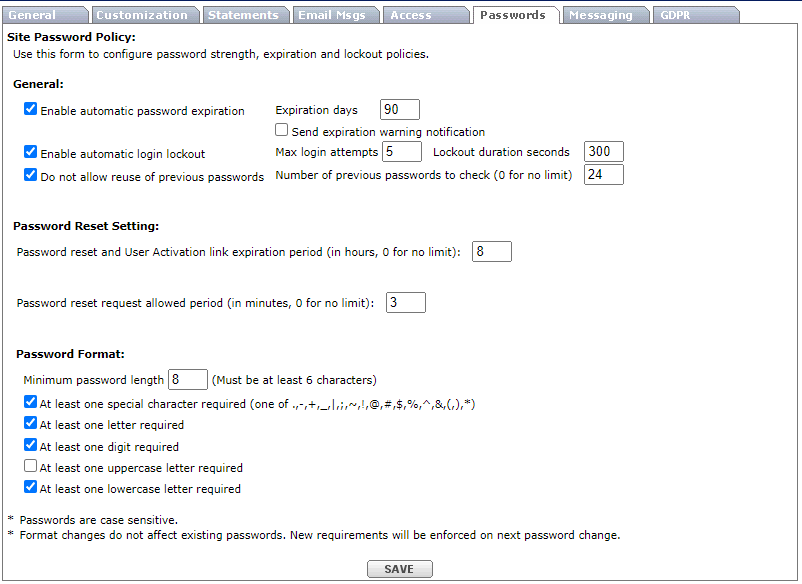
You can customize how passwords are generated and their format from the Passwords tab.
General
-
Enable automatic password expiration, make the following two options active, and put them in use.
-
Enable automatic password login lockout automatically lock out that user if they attempt the wrong password more than a specified number of times. They are locked out for the duration specified (in seconds).
-
Do not allow reuse of previous passwords will not let the user change their password to one of their previous passwords, returning the number of passwords specified.
For example, if the number of unusable previous passwords is set to five, the user cannot change their password to one of the last five passwords they have used. Provide 0 to enable all passwords to be reused.
Password reset settings
-
Forgot Password operation is allowed every - X number of minutes
-
Password reset links expire in - X number of hours. Default value: 8.
The setting also defines the expiration of password setup links sent to a new user when a user is created.
-
Next password reset request invalidates the previous request.
Password format
- You can specify the minimum password length. The longer the password, the more secure it is.
- You can also select any options to force users to create strong passwords.
- Click Save to save any changes.
- Passwords are case sensitive.
- Format changes do not affect existing passwords. New requirements will be enforced on the next password changes.
Messaging tab
Customize message properties and the format received by recipients from the Messaging tab. For more information, refer to Messaging.
GDPR tab
Enable GDPR site compliance and manage external user agreement statements from the GDPR tab.
Administrators can enable GDPR site compliance by checking Activate GDPR site compliance and consent to organization agreement. By checking this box, you agree with the consent statement displayed.
For more information, refer to GDPR.
