MFT retention policy changes management best practices
When managing your Boomi Managed File Transfer (MFT) retention policies, you need to know how a policy change affects your existing files. You can view the process of safely changing and testing policies.
-
Navigate to Boomi Managed File Transfer File Sharing site.
-
Select Administration from the top-right drop-down menu.
-
Click Retention from left-hand menu.
-
Select Block file deletion for all rules to turn off the automated deletion of files for all the rules to run our tests in a “safe mode”.
-
Click Save.
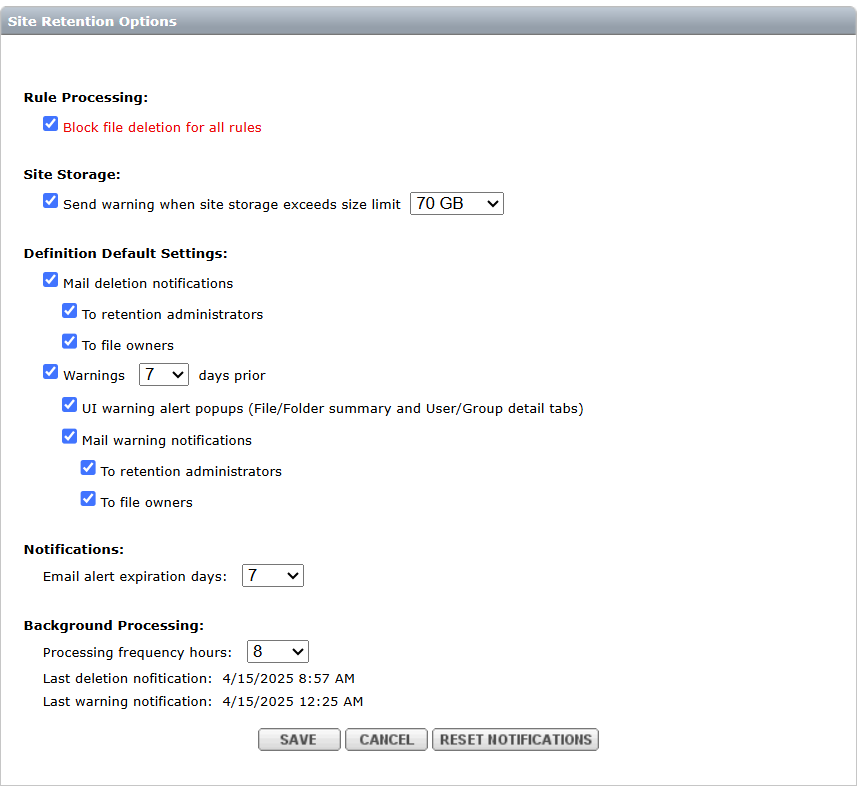
Make sure that the "Definition Default Settings" are set to send all notifications to the retention Administrators.
-
Create a definition with the new retention policy. For example, you can create a 30 day fixed period policy.
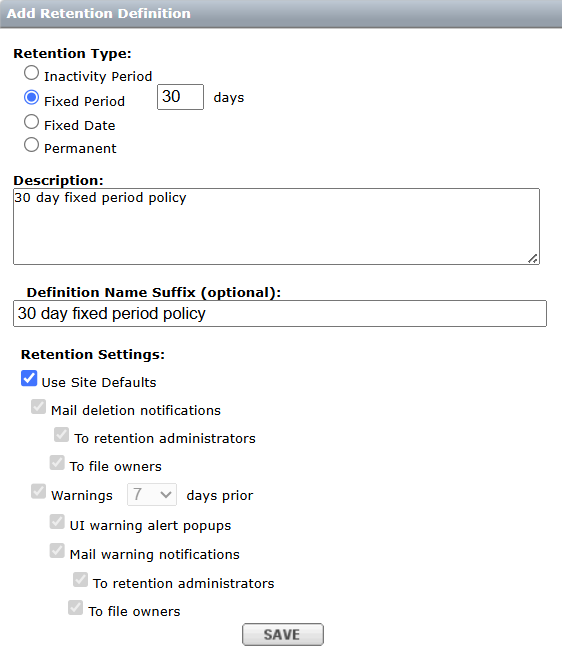
You can use the site defaults for the notifications.
-
Select the new definition in a rule that you want to change. For example, change the site-wide rule from 90 days retention to the new 30-day retention definition we created.
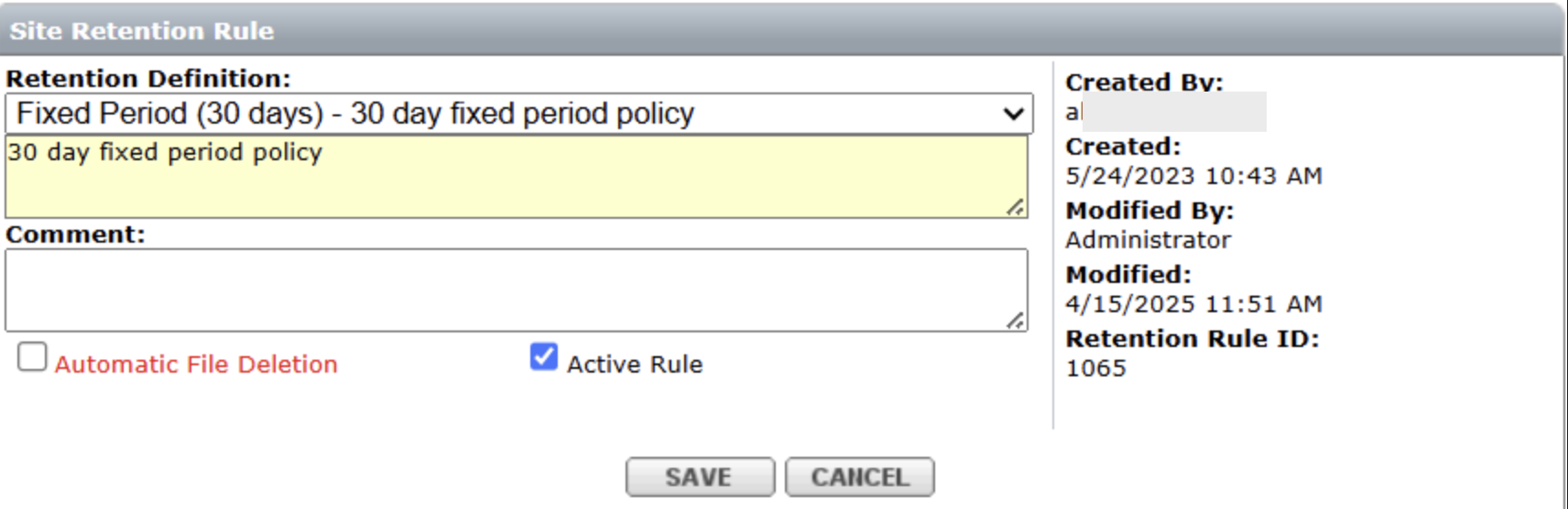
Once these changes are saved, wait for the retention rule to run. Since the frequency is set to 1 hour, the results might take approximately 1 hour.
The system sends an email to all the Retention Administrators. Make sure to receive emails from no-reply-notification@thruinc.com. This email reports that the retention system deletes 1,032 files from the site.
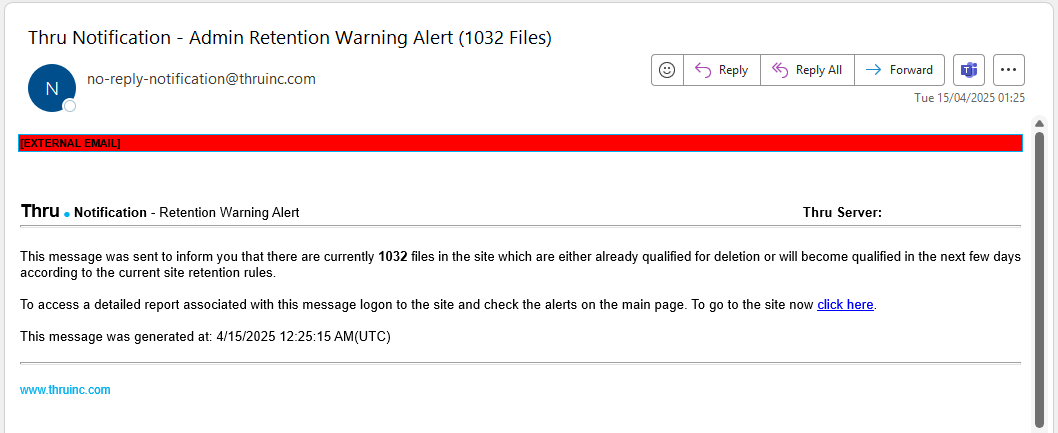
You can access the report in Alert by clicking the link in the email.
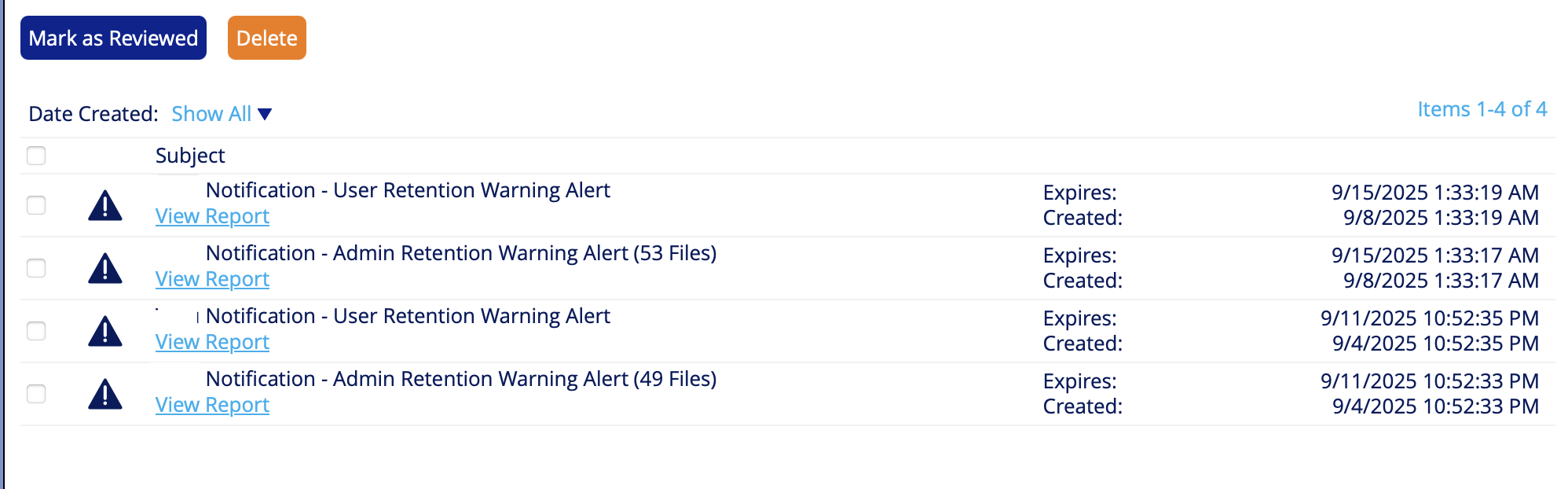
Click "View Report" for a detailed report.
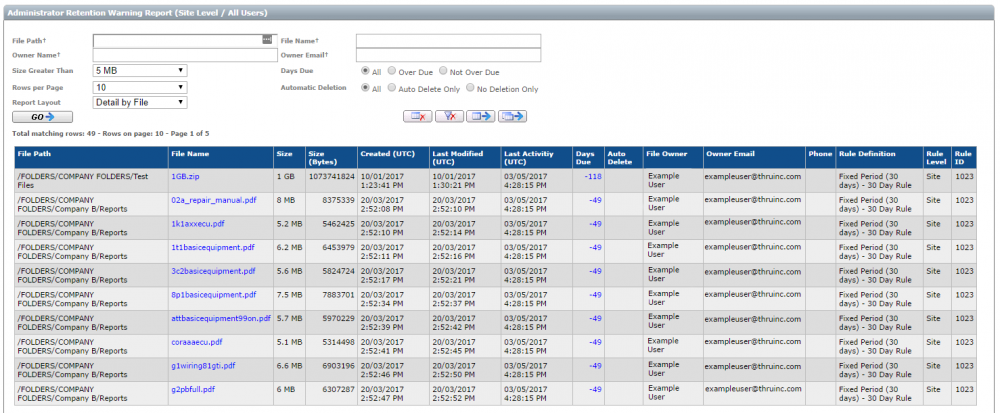
You have the several filtering options to narrow down the list by focusing for example, file size, files that are overdue, or file path.
The report can be exported to excel where you can add additional summary fields to total the number of bytes in the report.
