Managing retention rules
Create rules on system objects from the Retention page in the Administrator dashboard.
- Only Retention Administrators can create or modify rule setup. All the users can view retention tabs when they navigate the system.
- Only Retention Administrators have access to the Retention page in the Administration dashboard
- Rules become inactive if the active flag is disabled for the rule or if the definition becomes inactive.
The Rules page allows Administrators to manage file and folder retention rules for a File Sharing site. From this page, you can view all existing rules, create new ones, modify existing rules, or delete rules as needed to meet your data retention policies.
Retention rules define how long files and folders are retained and whether they are automatically deleted after a specific time.
You can view all file and folder rules by navigating to Administration > Retention > Rules > File system.
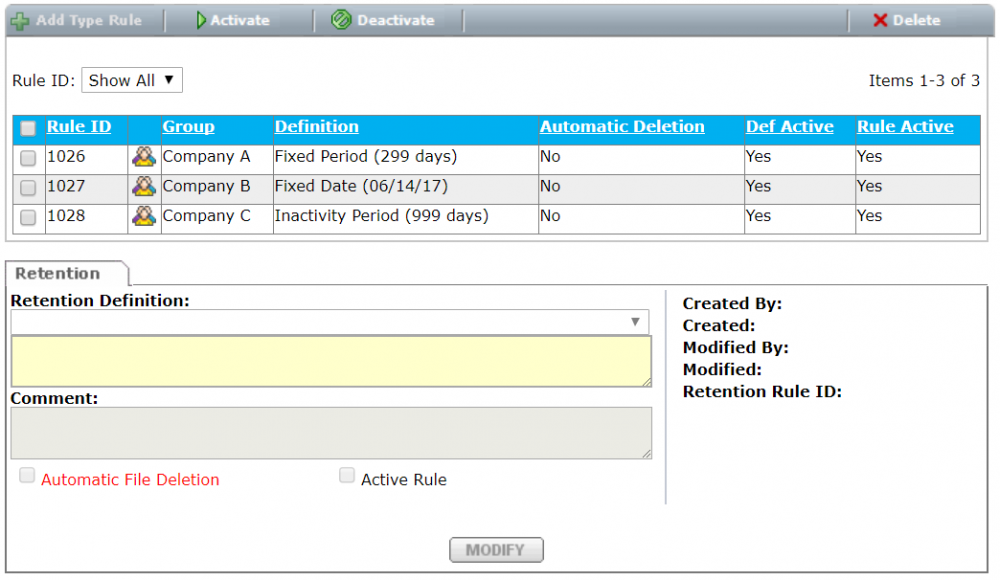
Creating a group rule
You can view all group rules by navigating to Administration > Retention > Rules > User Groups.
-
Click Administration and select "Groups".
-
Click the Retention tab and select Modify.
-
Select a definition from the drop-down or add a new definition by selecting Add new definition at the bottom of the definition list.
The rule is active by default, and automatic deletion is turned off.
As mentioned in Administration guidelines, prioritize high-level over low-level rules. Before creating a user-level rule, consider creating it on a group level instead and adding the user to the group. Having the rule at a group level lets you apply it to new users by adding them to the group instead of creating additional rules.
Creating a user rule
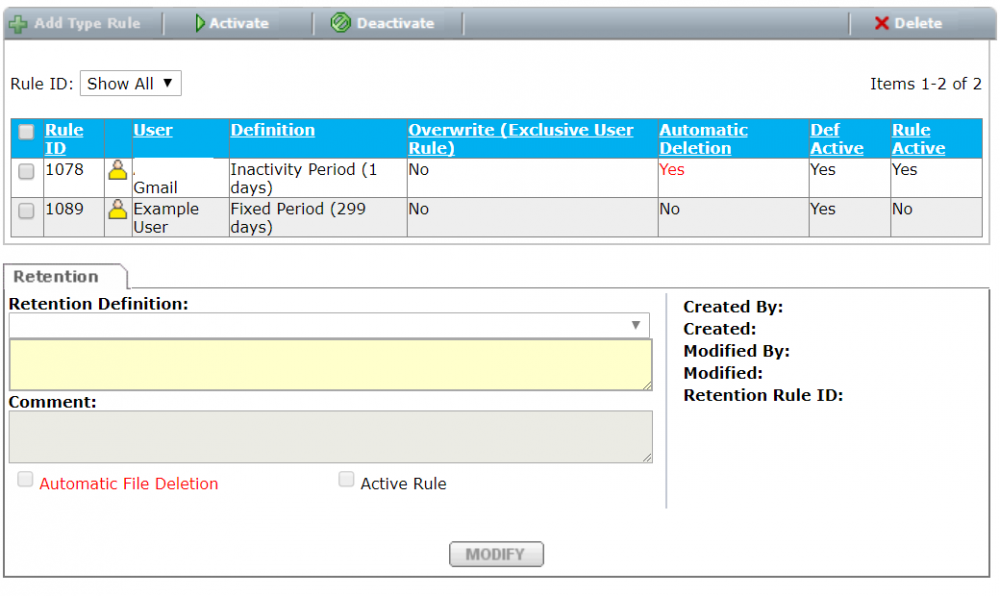
You can view all user rules by navigating to Administration > Retention > Rules > User.
-
Click Administration and select Users.
-
Click the Retention tab and select Modify.
-
Select a definition from the drop-down or add a new definition by selecting A new definition at the bottom of the definition list.
The rule is active by default, and automatic deletion is turned off.
Exclusive vs. Non-Exclusive Rules
By checking the Overwrite all other rules option, the rule becomes exclusive. This rule applies only to the files owned by this user.
This option is helpful for management or users who need to be immune to all other existing and future rules.
You can use the Permanent definition to protect their content. Permanent does not prevent manual deletion, but only ensures that the retention agent does not delete files.
Creating a file type rule
File type rules have a site-wide scope, except where specific folder-level, user-level, or file-level rules override them. To prohibit a particular file type, you can define zero-day file type rules with automatic deletion.
You can turn off automatic deletion if you want to monitor certain file types.
Creating a new file-type rule
- From the Administration dashboard, click Retention and select Rules.
- Click File Types and select Add Type Rule in the top action bar.
- Configure the rule by specifying the file type(s), retention policy, and whether automatic deletion enabled.
- Click Save to apply the new rule.
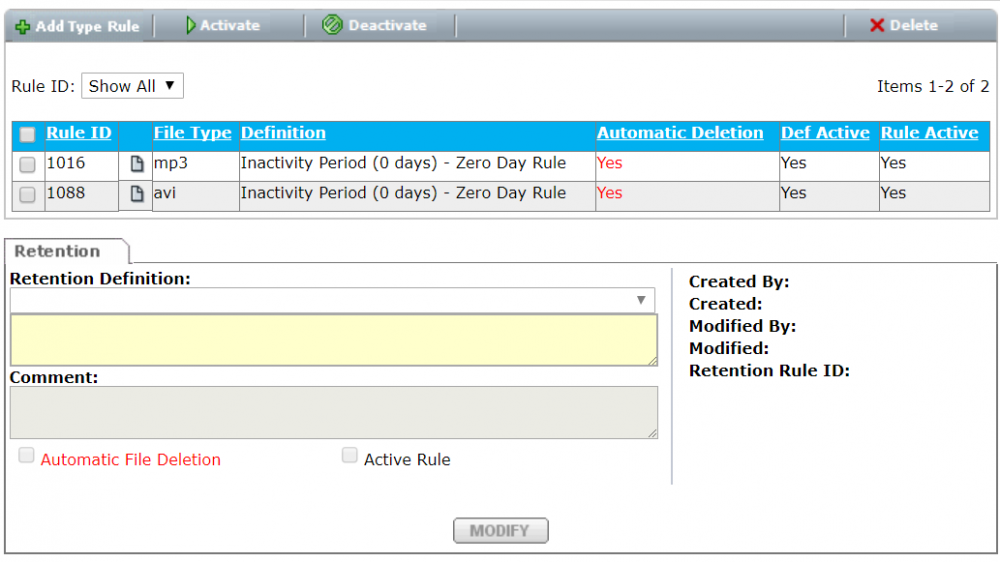
File type rules are listed on the "My Dashboard" page for all users. The section does not appear if there are no file type rules.
Excluding a folder
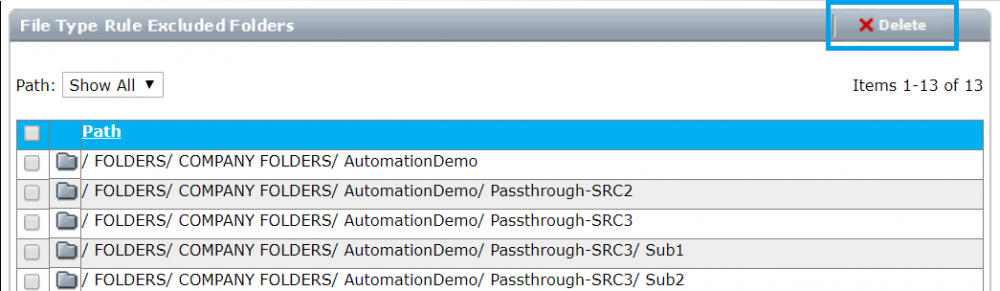
You can view all excluded folders by navigating to Administration > Retention > Rules > File Types > Excluded Folders.
- All file type rules are excluded. There is no way to select which file type rules to exclude.
- Exclusion always applies to all sub-folders.
- From the Administration dashboard, click Retention and select Rules.
- Click Modify and deselect the Enforce File Type Rules.
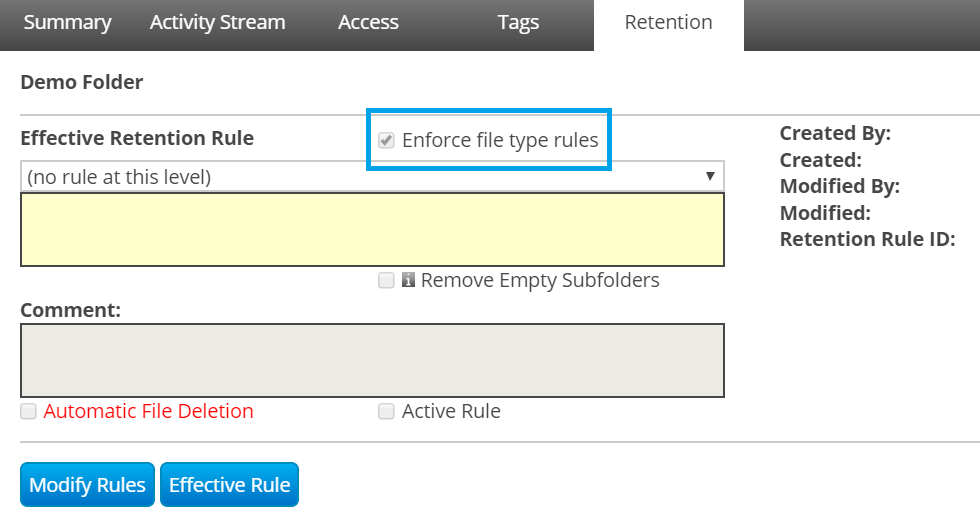
You can remove a folder exclusion by using Delete option in the Exclusion list.
Creating a file-level rule
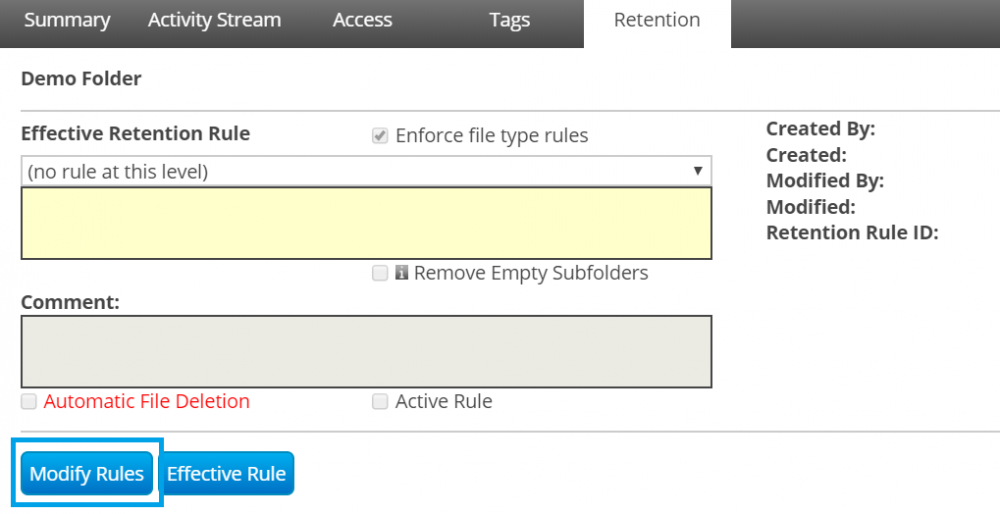
You can create a rule for a specific file by navigating to the desired file and clicking the Retention tab. Then click Modify Rules.
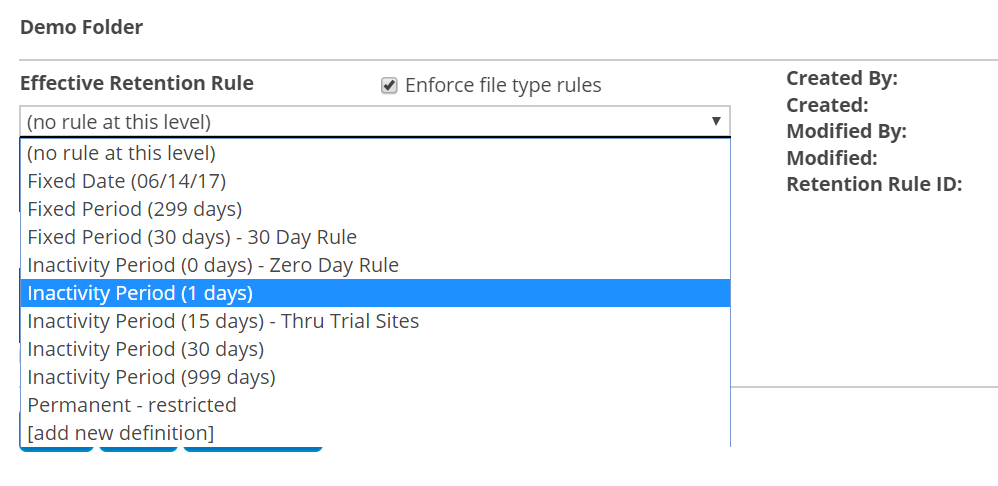
Select a retention definition from the drop-down list or add a new definition by selecting Add new definition at the bottom of the definition list.
The rule is active by default and automatic deletion is turned off.
Creating a folder-level rule
Creating a rule for a specific folder is similar to creating one for a file, except that you click the Retention tab for the folder.
Select a retention definition from the drop-down list or add a new definition by selecting Add new definition at the bottom of the definition list. The rule is active by default and automatic deletion is turned off.
Folder-level rules can remove subfolders if the retention type is a fixed date or fixed period. However, the folder on which the rule is defined is never deleted.
For example, an automated job loads sets of files into the system regularly. Each set is created in a subfolder. These sets are needed only for a short period of time.
To implement a rule for this scenario:
-
Create a root folder for the job and define a fixed period rule with subfolder removal and automatic deletion.
-
Navigate to the "Retention" tab of the root folder.
-
Click Modify Rules to configure a new rule.
In the rule definition:
- Choose a fixed date or fixed period retention type.
- Enable automatic subfolder deletion.
-
Save the rule.
