Configuring site level options
The Retention Options page contains key settings that control the retention processing agent and default settings for rule definitions.
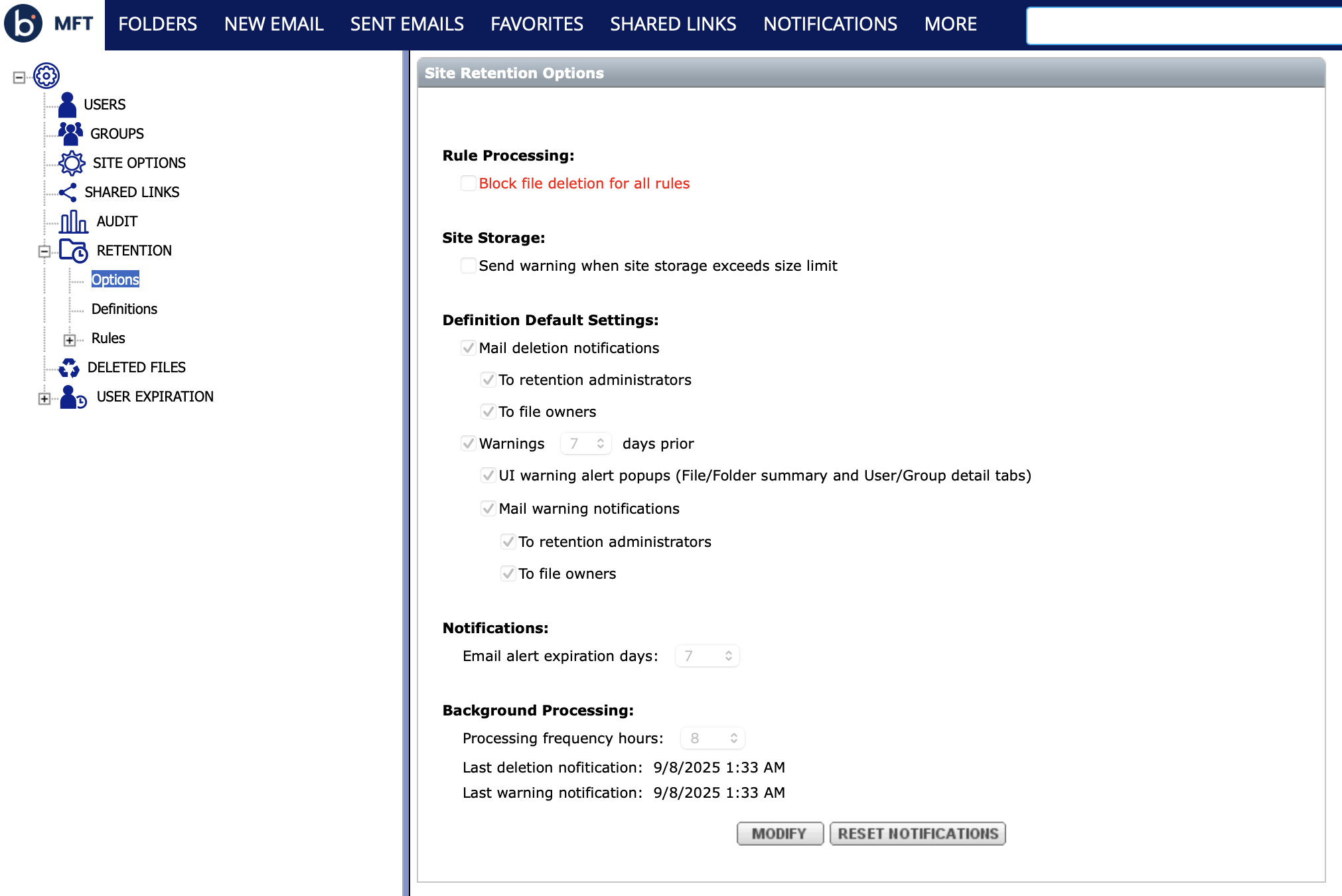
Rule processing
You can enable Block file deletion for all rules to immediately stop all file deletion for rules which have automatic deletion turned on. When enabled, files that are supposed to be deleted appear in warning reports.
You can use this option:
-
if you suspect that there is an emergency problem or if you get urgent user escalations. Blocking takes effect immediately.
-
for maintenance sessions, during which it is turned off for a short period of time after reviewing the files that are due for deletion.
Site storage warning
When this feature is enabled, Administrators on your site will receive daily notifications when site storage exceeds the storage limit.
To activate site storage warnings, click Modify on the Site Retention Options page to edit options. Select the checkbox to Send warning when site storate exceeds size limit and set a size limit. Then click Save.

Default definition settings
You can define default settings for retention definitions. If needed, you can override the settings for individual definitions.
-
Mail deletion notifications - Determines whether deletion notifications will be sent to users, administrators, or both. Settings can be overridden for individual definitions.
-
Warning UI Alert Popups - The system was designed with a defensive approach to show effective rule popup whenever you navigate to a file, folder, user, or group in the web interface. Alerts are also shown in MFT Explorer.
If, for example, you have a site-level rule with a long-range such as Fixed Period 365 Days, the user will get this warning all the time when they navigate the file system. The user can turn it off for session duration, but it will result in turning off alerts for all rules.
A better way is to configure the definition not to show UI alert popups. We recommend that you not disable alert popups in the options form, but only in special cases as needed.
-
Warning Mail Notifications - Determines whether warning notifications will be sent to users, administrators, or both. If you keep the default value of a seven-day warning and you need to create a short period rule such as three days, you might want to change the warning days value or disable warnings altogether.
Background Processing
Retention processing occurs in cycles every few hours as defined using this parameter. We highly recommend not setting this option under 8 hours.
- Files that are subject to retention rules with automatic deletion are not deleted immediately when the rule goes into effect.
- Deletion will occur only in the next cycle.
If the site is configured for an eight-hour cycle, the average time for expired files will be four hours.
You can reduce this average down to 30 minutes by configuring a one-hour cycle, but this can hurt the performance of the site.
In general, the larger the site, the longer frequency needs to be.
If your installation is hosted in the MFT data center, we recommend consulting with the MFT operations team before reducing the frequency under eight hours.
Reset Notifications
This option is mainly used for troubleshooting and demo purposes where processing and notifications need to occur immediately during the next cycle.
The retention cycle will not occur as a result of agent (windows service) restart.
