Retention
Boomi Managed File Transfer's retention policy services offer powerful tools for administrators and retention users to effectively manage content lifecycle. These features provide:
- Custom expiration rules
- Multi-channel alerts:
- Web interface warnings
- MFT Explorer notifications
- Email alerts
- Automated content deletion
Designed for scalability, the system provides granular rule-level configurations, letting administrators to fine-tune notification volumes for large-scale deployments.
You can manage retention policies from Retention in the Administration dashboard (Account Name > Administration)
Before implementing, consider the following retention management strategies. You can combine multiple approaches within a single site to meet diverse needs.
-
Voluntary/User Managed
Retention rules are configured to warning only with user notifications. Users are responsible for cleaning their own content or leaving retention to the administrators in case rules affect critical files. Administrators monitor the system and intervene only periodically to work with individual users to clean their content in case of growing policy violations.
-
Actively Managed
Some retention rules are configured as warning only and some with automatic deletion. Retention administrators monitor the system regularly and actively delete content.
-
Fully Automated
This strategy was designed with automated B2B processes in mine: rules are configured with automatic deletion, including automatic subfolder deletion if needed. It is possible that warning and/or deletion notification are not required. No manual decisions or interventions are needed.
Another scenario is file retention due to legal requirements: for example, when files must be removed after 72 hours. In such cases, rules are defined for automatic deletion without warning notifications.
Retention rules and definitions
Retention rules establish connections between:
- Definitions (schedules)
- System objects (such as folders or users)
The term "definition" replaces "schedule" to encompass:
- Time-based parameters
- Warning periods
- Notification settings
This expanded terminology provides comprehensive rule configurations.
For the schedule aspect, the system supports the following definition types:
- Inactivity Period - Files expire if there is no activity (including downloads) for a given number of days.
- Fixed Period - Regardless of activity, files expire after a given number of days since file body was modified (Modified Date). File Overwrite and Restore operations reset the date.
- Fixed Date - All files expire on a given date (past dates are allowed)
- Permanent - A special definition which protects files from deletion.
Effective rules
MFT implements retention rules across multiple organizational levels. This multi-tiered approach necessitates a clear precedence structure to determine which rules take priority when conflicts arise.
A file is subject to the rule which is closest to it, according to the following diagram:
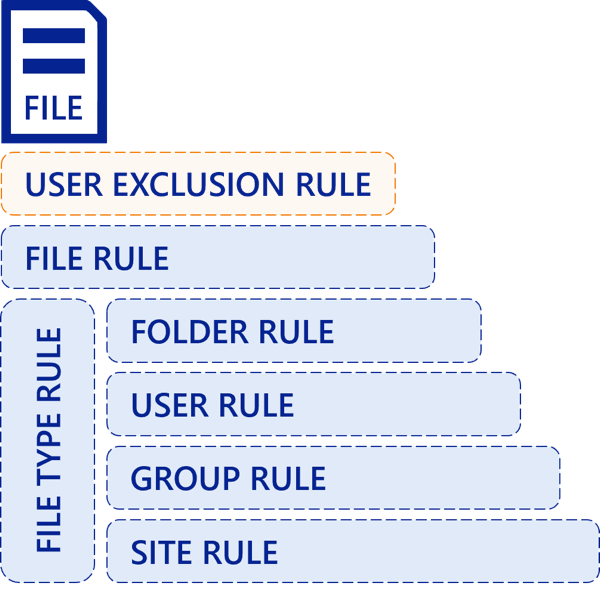
You can define an exclusive user rule which shields the user from all other rules in the system, including rules which may be created in the future.
File type rules are enforced side-by-side with all other rules except exclusive user and file rules, so that file type rules are still enforced even if other rules are defined.
Side-by-side means that the file will expire when the first of the file type or the other rule goes into effect.
Rules on file types and zero days rules
File type rules allow Administrators to control large personal content, such as music or video files.
You can block certain file types at upload time by setting file types upload restrictions in Site Options.
If you need to create a policy to prohibit music files or MP3, you can create a fixed period or inactivity definition with zero days and create a file type rule on MP3 extension. This rule would delete MP3 files on every cycle.
There might be cases where business-related MP3 files need to be uploaded. To allow that, MFT allows excluding file type rule enforcement on selected folders. The exclusion is always for all file type rules and for all sub-folders.
Exclusive user rules and file rules always hide file-type rules.
Retention notifications
Retention notification settings include:
- Send warning notifications to Retention Administrators and/or users (file owners)
- Send deletion notifications to Retention Administrators and/or users (file owners)
- Number of days to start warnings before the rule goes into effect
By default, retention notification settings are taken from site-level options, but they can be overridden for selected definitions.
- Warning notifications are aggregated and sent once daily
- Deletion notifications are sent on each cycle (as defined in site options) when files are deleted
Recovering deleted files (trash bin)
When files are deleted, MFT keeps them for several days before purging them. Files can be restored only during this grace period.
Only files can be restored. Folders are not retained when deleted.
If files cannot be restored to their original location, they will be restored to the Retention Restore folder under the Administrator's HOME folder.

- When files are deleted by the retention service, the system shows the rule which caused the deletion in the deleted files list.
- The trash bin can be accessed only by Retention Administrators and users cannot recover their own deleted files.
