Activating mobile access for users
To enable mobile access for a user after account creation, add them to one or both MFT mobile user groups:
- Mobile Web Users: Users within this group can access the MFT site via mobile web browsers.
- Mobile App Users: Users within this group can access MFT via native mobile applications for iOS and Android.
Users can download MFT native mobile applications for free from the iTunes store.
Adding users to mobile groups
You can add users to one or both of the MFT mobile groups.
- Navigate to your File sharing site.
- Select Administration from the top-right drop-down menu.
- Click Groups from the MFT Administration Dashboard.
- Locate the mobile group you want to add a user to and select it. For example, select the Mobile App Users group.
- Click "Users" tab and select Modify.
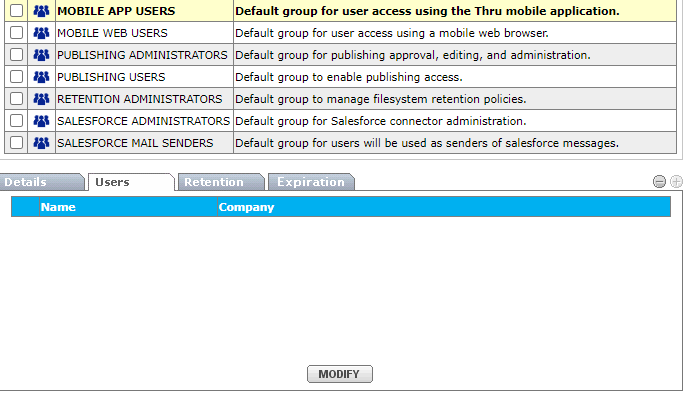
Adding users to group
-
In the Search Bar, select "All" and click Search to view all non-group users.
-
Select the checkboxes of the desired users.
-
Click Save.
You can search for specific users or filter by Name, Username, Company, and Email.
-
Apply these steps for both Mobile Web Users and Mobile App Users groups.
Without mobile group membership, users can:
- Download files from distribution links on mobile devices.
- Upload files via MFT Dropbox™ from mobile devices.
