Setting up MFT dropbox links
To securely receive large files from non-registered users, users can create a link to their MFT Dropbox™. This lets non-MFT users securely send mail directly into a user’s My Dropbox folder.
The Dropbox URL is formatted as follows:
https://companyname.thruinc.net/Desktop/Dropbox/Create/?toemail=name@companyname.com
To create a link, substitute companyname with your company’s name and name@companyname.com with the user’s email address.
For example, [https://demo.thruinc.net/Desktop/Dropbox/Create/?toemail=user@abctechnology.com]
If your company has a unique site URL that does not end in .thruinc.net, then fill in your MFT site URL in place of https://companyname.thruinc.net at the beginning of the MFT Dropbox link.
For example,
https://filetransfer.companyname.com/Desktop/Dropbox/Create/?toemail=name@companyname.com*
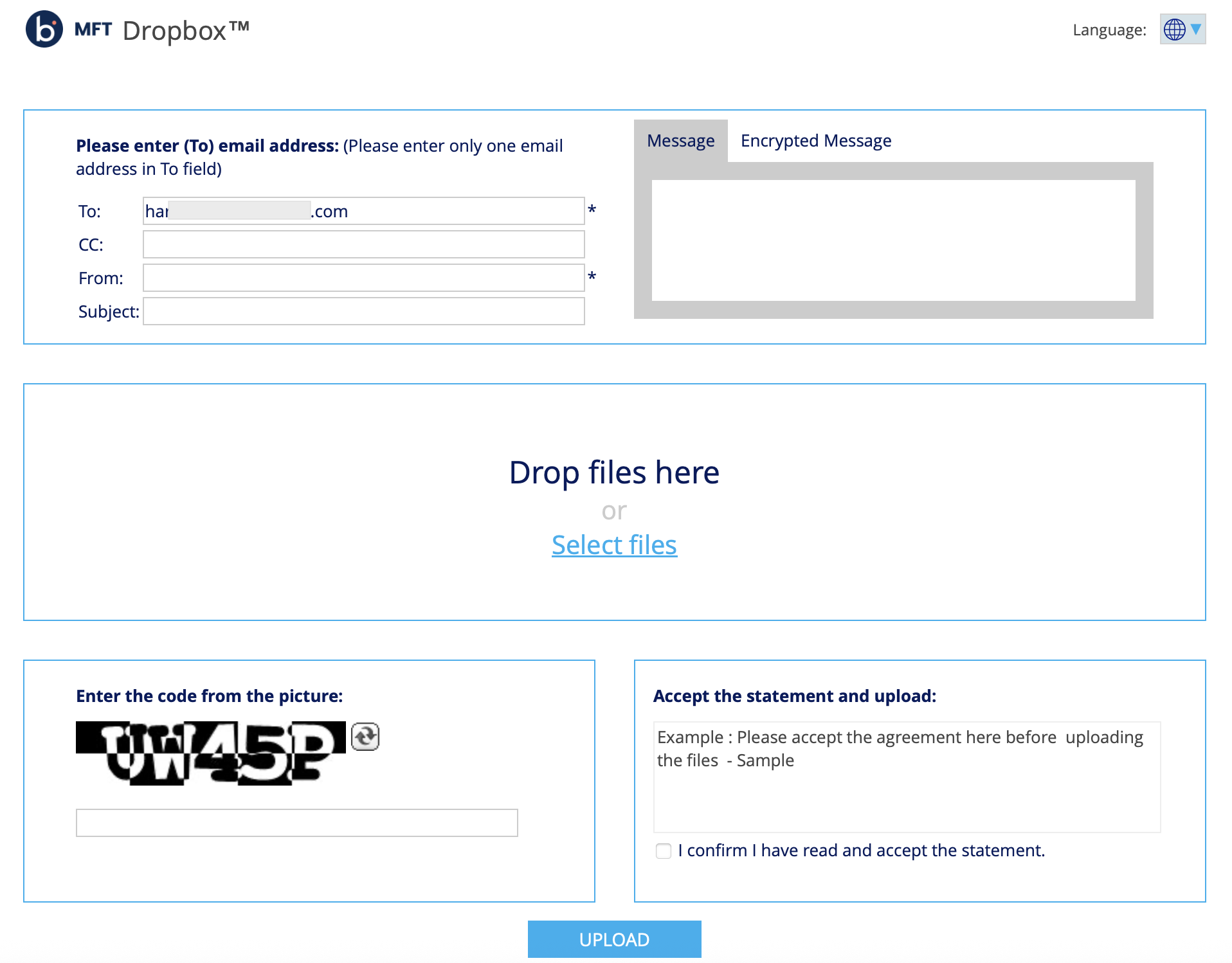
After creating the link, you can send it to anyone via email, company websites, and portals. When user clicks on the Dropbox link, they are redirected to file upload form where they can send files to users.
Adding a MFT Dropbox™ link to Outlook Signatures
For users on your site that use Microsoft Outlook, they may want to add a link to their Dropbox in their email signature so that external customers and partners can send them large files securely.
- Navigate to Outlook Options by selecting File > Options.
- Select the Mail tab.
- Select Signatures.
- In the Signatures and Stationery section, select an existing email signature to edit or select New to create a New Signature.
- In the email signature add a line such as “My Dropbox™: Send me files securely”.
- Select the “Send me files securely” text.
- Select Edit Hyperlink.
- Insert the Dropbox link into the URL field, and then click OK.
Customizing Dropbox URL
The default URL to access MFT Dropbox is https://sitename.thruinc.net/Desktop/Dropbox/Create, but you can customize your Dropbox URL by using the following format: https://sitename.thruinc.net/cr/Custom.
Define Custom in the site metadata. For example, if the custom metadata is set to SecureUploads, the DropBox URL becomes https://sitename.thruinc.net/Desktop/cr/SecureUploads/Create.
