Deleted files
All deleted files that are deleted manually or by the retention service are available in the DELETED FILES page in the Administration dashboard. Deleted files are kept in the "Deleted File folder" for the period set in the Site Options" under File System Purge Period.
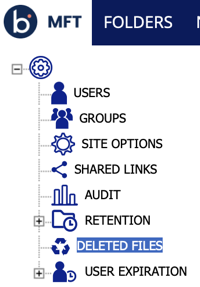
The default purge period is set to 72 hours but you can adjust it to meet specific business needs.
- By default, the deleted files list is sorted by date deleted, descending.
- Files deleted by the retention service will show the rule that caused the deletion.
- The deleted files list has search filters you can use in order to find files quickly.
Deleting files permanently
If you want to delete certain files from the list, you can use the Delete action to permanently remove them.
Restoring files
Files can be restored, but folders cannot be restored.
If files cannot be restored to their original location, they will be restored in Retention Restore folder under the Administrator’s home folder.
When files are deleted by the retention service, restoring them to the original location might be useless because the files will be deleted again on the next retention cycle.
For such files, you can change the rules or force restore to your "HOME" folder by selecting the "Restore to my home location only" check box, and move them to a safe location.
To restore, select the files and click Restore.
Restoring to administrator Home folder
When the original parent folder is deleted or the Administrator turned on "Restore to my home location only" checkbox, the files will be restored to "Retention Restore" under your HOME folder.

The folder will be created automatically if it does not exist.
For each restore operation (not for each file) the system will create a subfolder under "Retention Restore" with a timestamp. The restored files will be created with their original path.

