Viewing reports
The Reports gives you access to a list of predefined reports tailored for common use cases and data aggregation. These reports are created on-demand to support recurring analysis needs.
Activity dashboard
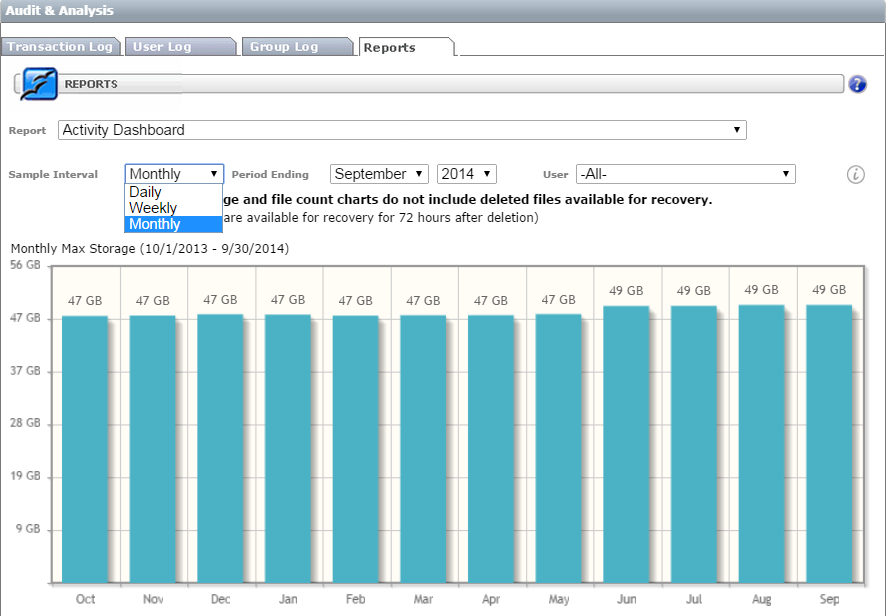
The Activity Dashboard provides the following graphs of usage on your site:
- Max Storage
- Max File Count
- Secure Message Count with Running Totals
- File Count Summary
- Throughput Summary
- Max User Count
These reports can be further refined by selecting to display them by daily, weekly or monthly intervals. You can also select which interval to display in the graphs so that you have complete control of what is going on within your MFT site.
User analysis
Select User Analysis from the "Report" drop-down list to perform user analysis.
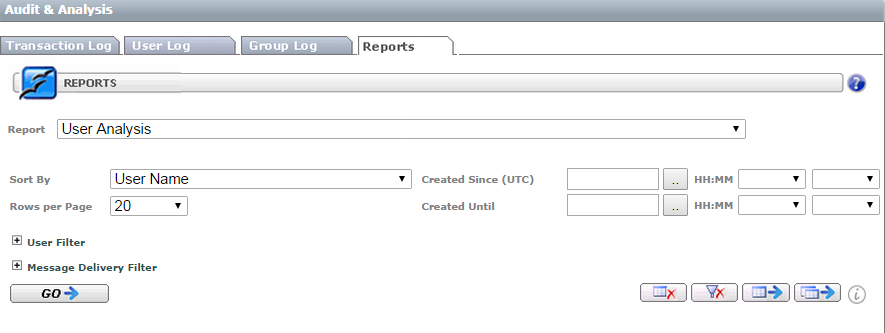
You can further refine your search by using the search filters. You can sort by:
- Last Login – Least Recent – Sorted with the oldest login displayed at the top.
- Last Login – Most Recent – Sorted with the most recent login displayed at the top.
- Message Count – Max First – Sorted by the number of messages sent with the highest message count at the top of the list.
- Message Count – Min First – Sorted by the number of messages sent with the lowest message count at the top of the list.
- Number of Files – Max First – Sorted by the number of files owned by the user and the user with the highest number of files first.
- Number of Files – Min First – Sorted by the number of files owned by the user and the user with the lowest number of files first.
- Storage – Max First – Sorted by the total amount of storage and the user with the greatest storage listed first.
- Storage – Min first – Sorted by the total amount of storage and the user with the smallest storage listed first.
User filters
MFT Active User filter operations related to a selected active user. Enter email or part of an email. This filter can be used to query deleted users.
Message delivery filters
- Recipients Email †: Enter the mail or part of the email of the recipient of the message.
Statistics by tags
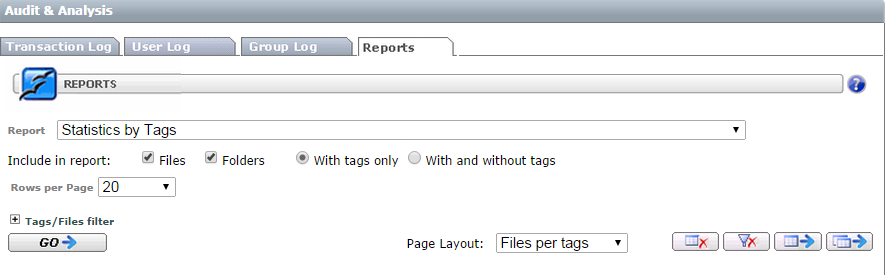
Select the Statistics by Tags report to run reports on files and folders based on the added tags.
Form actions
- Go: Submits a new search.
- Clear Result: Clears result section.
- Reset Filter: Restores default filter.
- Export Page: Converts results shown on the page to Excel.
- Export All: Converts entire matching results to Excel.
We recommend checking Total matching rows before clicking the export button. Excel might take long time to open for a very large result set.
