Auditing
From the Audit page, you can run reports to view what is going on with the site and who is using it. You can search for audit entries using four distinct logs.
You must be in the AUDIT GROUP to access the Audit page.
Form actions
You can perform the following actions on each audit log:
- Go: Submits a new search.
- Clear Result: Clears result section.
- Reset Filter : Restores default filter.
- Export Page: Converts results shown on the page to Excel.
- Export All: Converts entire matching results to Excel.
We recommend checking Total matching rows before clicking the export button. Excel might take long time to open for a very large result set.
Transaction Log
The Transaction Log report lets both users and administrators analyze file system activity. The MFT server records all file system transactions, with each transaction comprising an operation with a detailed list of the file and/or folder items that include operation-specific data.
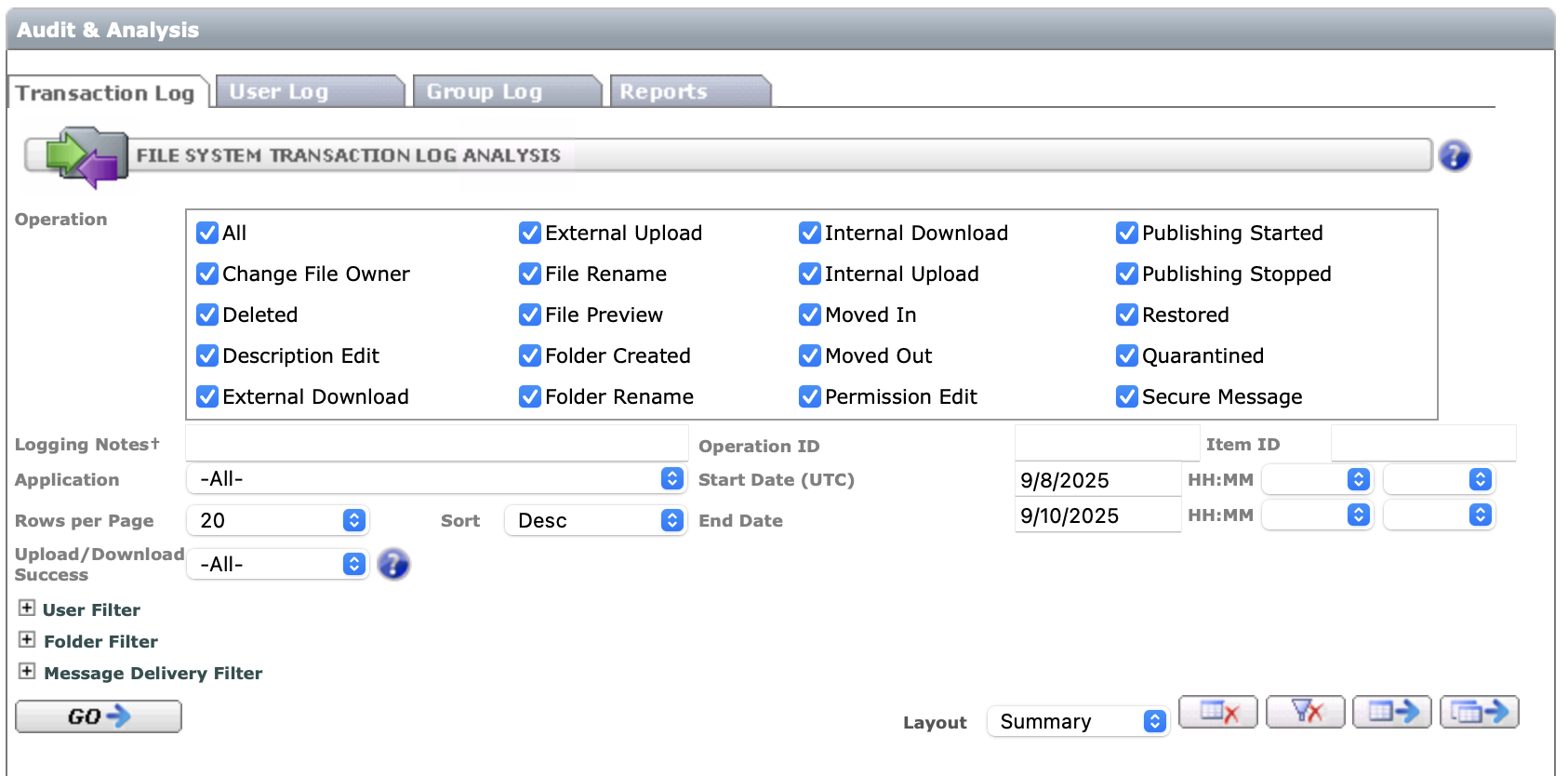
You can configure how the Transaction Log is formatted by changing the Layout option:
- Summary - (Default) Shows only operation information, without related files and folders
- Basic Detail - Includes file and folder information as specified by the user. (Only items marked with Top flag are shown in the result)
- Full Detail - Includes all items paricipated in the operation, including folder descendents.
Filters marked with † accept wildcards (either * or %).
General filters
- Operation: Select one or more operations. The All option overrides individual selections.
- Application: Filter a specific client application.
- Operation ID: Report result includes operation IDs. You can filter by an ID to access an operation directly.
- Item ID: Report result includes item IDs in basic and full-detail layouts. You can filter by an Item ID to get the operation that includes the item.
- Operation Date/Time (UTC): Operation creation date range. To clear a date, open the date popup and click "Reset". The default end date is set to the next day to cover geographical areas where UTC time is a few hours ahead of local time.
- Rows per Page: Maximum number of operations shown on one page.
- Sort: Report result is sorted by Operation ID.
Use this filter to specify ascending or descending order. For further sorting, export the results to Excel.
User filters
- MFT Active User: Select one of the active users (for managers and administrators only).
- MFT User Email†: Enter email or part of the email. This filter can be used to query deleted users.
- External User Email†: External user is either a secure message recipient, including CC and BCC, or MFT Dropbox sender. Specify the email or part of the email.
- Client IP Address†: Client IP Address is captured for all operations. Multiple users might have the same IP if their requests go through a corporate proxy.
Folder filters
- Select Path: Select a folder from the active folder list. To get operations on immediate children only uncheck the Include Sub-folders checkbox. Note that the folder is filtered by a path string. Therefore, if the path has been renamed, results will not include entries logged with previous paths.
- Enter path†: Specify a folder or part of the path with wildcards. This filter can be used to query deleted folders.
- File Name†: Enter the exact file name or part of the name with wildcards.
Message delivery filters
- MFT Tracking No.: Tracking No. is captured for message delivery and external download operations.
- Message Subject†: Enter full or part of the subject. The message subject is captured in Secure Message and External Download operations.
- Message State: Choose between active only, expired only, or all.
- Message Body†: Enter search expression with a wild card.
- Private Message†: Enter search expression with a wild card.
User Log
The User Log report lets administrators analyze user activity. MFT server tracks all login attempts and administrative operations.
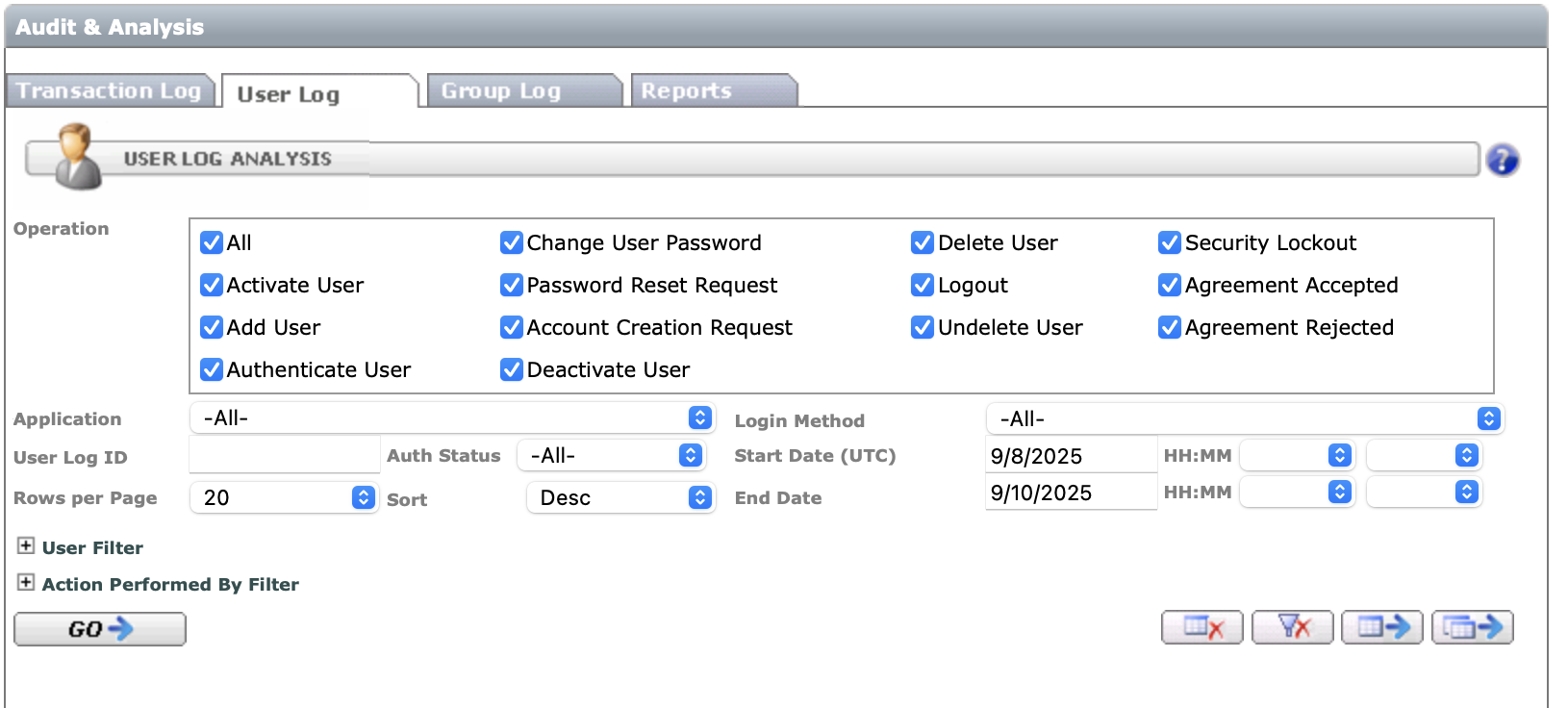
Filters marked with † accept wildcards (either * or %).
General filters
- Operation – Select one or more operations. ‘All’ option overrides individual selections.
- Application – Filter a specific client application.
- Login Method – Filter login/password or SSO only authentication attempts.
- User Log ID – Report result includes user log IDs.
You can filter by an ID to access a log entry directly. - Operation Date/Time (UTC) – Operation creation date range.
To clear a date, open the date popup and click ‘Reset’.
The default end date is set to the next day to cover geographical areas where UTC time is a few hours ahead of local time. - Rows per Page – Maximum number of operations shown on one page.
- Sort – Report result is sorted by User Log ID.
Use this filter to specify ascending or descending order. For further sorting export the results to Excel.
User filters
- MFT Active User – Filters operations related to the selected active user.
- User Email† – Enter email or part of the email. This filter can be used to query deleted users.
Performed by filters
- MFT Active User – Filter operations performed by the selected active user.
- User Email† – Enter email or part of the email. This filter can be used to query deleted users.
- Client IP Address† – Client IP Address is captured for all operations.
Multiple users might have the same IP if their requests go through a corporate proxy.
Group Log
The Group Log report lets administrators analyze group setup changes. MFT server tracks all administrative operations.
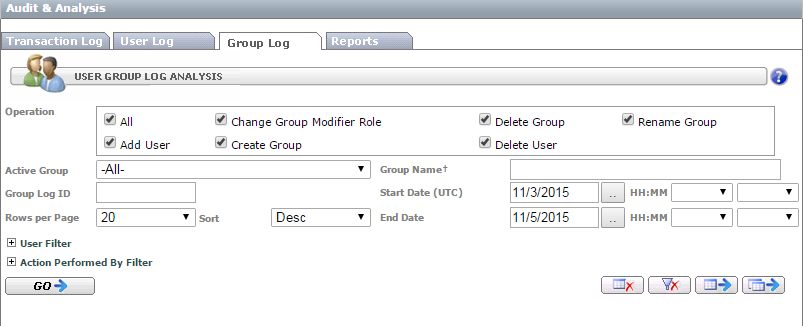
Filters marked with † accept wildcards (either * or %).
General filters
- Operation: Selects one or more operations.
All option overrides individual selections. - Active Group: Selects one of the active groups.
- Group Name†: Enter group name or part of the name with wildcards. You can use this filter to view deleted groups.
- Group Log ID: Report result includes group log IDs.
You can filter by an ID to access a log entry directly. - Operation Date/Time (UTC): Operation creation date range.
To clear a date, open the date popup and click "Reset".
The default end date is set to the next day to cover geographical areas where UTC time is a few hours ahead of local time. - Rows per Page: Maximum number of operations shown on one page.
- Sort: Report result is sorted by User Log ID. Use this filter to specify ascending or descending order. For further sorting, export the results to Excel.
User filters
MFT Active User filters operations related to the selected active user. Enter email or part of the email. This filter can be used to query deleted users.
Performed by filters
- MFT Active User: Filters operations performed by the selected active user.
- User Email†: Enter email or part of the email. This filter can be used to query deleted users.
- Client IP Address†: Client IP Address is captured for all operations. Multiple users might have the same IP if their requests go through a corporate proxy.
