Setting Embed Upload Component
The Embed Upload Component generates simple code that creates a File upload widget that can be embedded into an external website. You can integrate a web component into a third-party website that allows you to upload files directly to a flow in MFT. You can also configure it to create a metadata file with configurable outputs, as well as simulate a source path.
The Embed Upload Component allows you to use the Upload Widget to transfer files into Flow Endpoints associated with an MFT file transfer flows.
-
Click Embed Upload Component.
The Embed MFT Upload Component dialog displays.
-
Select an API Key. An API key allows the upload widget to authenticate with the MFT service.
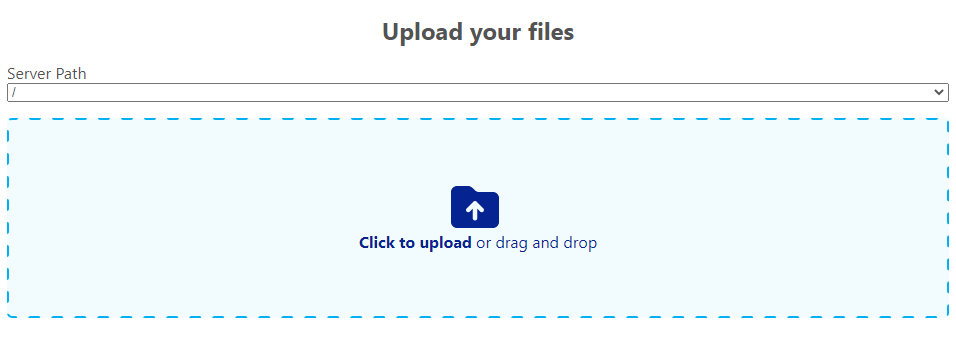
The upload widget looks similar to the following example once embedded:
If you encounter a "blocked by CORS policy" error when attempting to use the widget, your hosting domain needs to be added to our Cross-Origin Resource Sharing (CORS) allowlist.
To resolve this:
- Contact your account representative
- Provide the domain where you intend to embed the widget
- Request CORS policy configuration for your specific domain
Our support team will ensure that your domain can successfully load and use the web upload widget without cross-origin restrictions.
CORS preflight check
When developing locally, you have two options to work around the CORS preflight check:
Option 1
You can start Chrome with web security disabled to skip preflight checks for cross-domain requests. You can do so simply by running the following command in your command prompt.
Note that you need to update the —user-data-dir parameter to point to a directory that has already been created.
The directory will not be created automatically, and the command will fail. You must also supply an absolute path, using a relative path will cause the command to fail.
"C:\\Program Files\\Google\\Chrome\\Application\\chrome.exe" --disable-web-security --disable-gpu --user-data-dir=C:\\Users\\example\\Desktop\\chromeTemp
Option 2
You can configure your development environment to use HTTPS. To serve your test app locally, you need to generate a certificate. We recommend using a tool like mkcert https://github.com/FiloSottile/mkcert for certificate generation.
MFT’s CORS policy must be updated in our environment to accommodate the URL under which the app is served locally. Contact your account representative for this update.
For example, the US environment already has local.thruinc.net allowlisted to support local development of the upload widget.
The list of allowed origins we have configured in US Prod (as an example) is as follows:
Setting up your local development environment for HTTPS highly depends on how the customer’s project is set up, which is why we would recommend option 1.
In our case, we use Load Balancers to serve the project with HTTPS, there are certainly other ways to support HTTPS.
Disabling auto-upload
MFT also supports a version of the web component that allows disabling the auto-upload feature.
You can trigger the upload with the following code:
<thru-upload
  api-key=""
  flow-endpoint-id="1681"
  api-url="https://exampleurl.thruinc.net/api"
  auto-upload="false"
></thru-upload>
<button onclick="trigger_uploads()">Upload</button>

<script>
      trigger_uploads = () => {
        const triggerUploadsEvent = new CustomEvent("trigger-uploads")

        // Trigger the event
        document.dispatchEvent(triggerUploadsEvent)
      }
</script>
Default feature is unchanged. You must specify auto-upload="false" for this behavior to be present.
