Managing Flow
You can add, delete, import, and export a flow using options available in the Flows page.
Flow Properties page
The Flow Properties page allows you to edit the flow name, add a description or enable / disable the flow. After you finish making changes, save the changes to implement them. The description text is visible to the user in the flow subscription view.
Adding a Flow
To add a flow, follow these steps:
- Navigate to the Flows page.
- Click Add Flows.
- Select Enable toggle to turn ON or OFF position. By default, Enable toggle is ON.
- In the Name field, enter the name for a flow.
- Add a description to the Description field.
- Click the Save button to save your changes.
Importing a Flow
You can import and export flows. Flow configuration is stored in a JSON format.
-
Click Import Flow.
-
Do one of the following:
- Drag and drop a valid JSON file into the window
- Click Click to import to browse for a JSON file
- Import manually.
-
Click Import and Push Flows or Import Only.
During the import process, you may see any conflicting entities highlighted, allowing you to resolve them automatically. Clicking Resolve displays the imported JSON and highlight the issue and the automatic resolution. You can scroll down or use the Next and Previous buttons to navigate through the conflicts and suggested change.
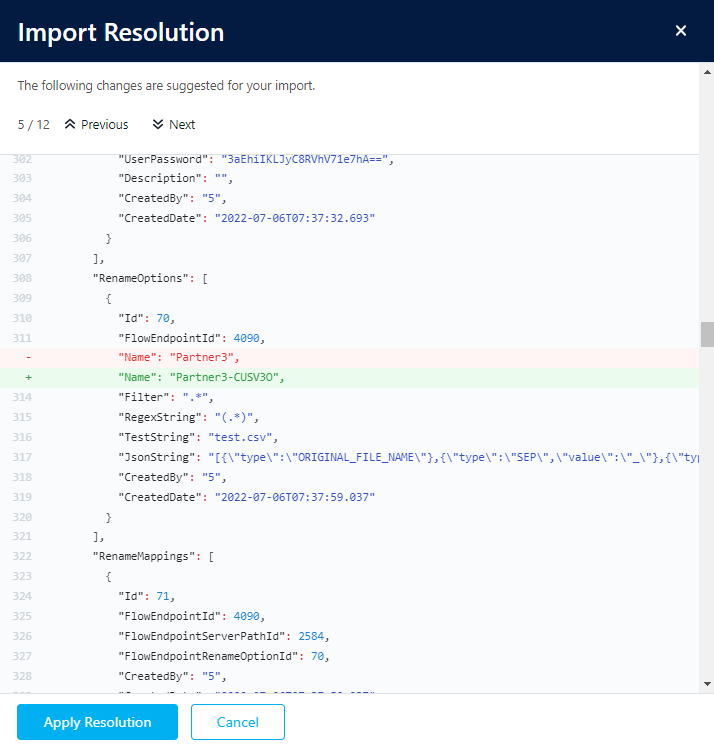
You can click Apply Resolution to commit the changes.
Exporting a Flow
You can export a flow configuration in a JSON format, which can be easily edited or re-imported as needed.
The migration of configurations between MFT environments is achieved through a systematic process. This involves exporting selected configurations from the source environment into a JSON-formatted file. You can edit this file before importing it back into the target environment. The process also includes certain support mechanisms for conflict resolution, ensuring a smooth transition of configurations.
- You can select one or more flows for the export.
- Export action has an option to export all endpoint credentials. By default, endpoint credentials are exported.
- Export saves the selected flows, all linked objects like Flow Endpoints, Endpoints and Orgs, and all settings of the objects in a single JSON-formatted export file per flow.
After exporting the JSON file, you can manually edit it or code scripts to transform the data.
Exporting FileZilla Config
This option enables the export of endpoint types that can be imported into an FTP client designed for FileZilla, and has also been tested with WinSCP.
The export is in an XML format.
The XML format used by FileZilla does not support SFTP users configured with SSH keys. Although the user account will be created, it will lack any defined authentication method.
Deleting a Flow
- Navigate to the Flows page.
- Choose the Flow you want to delete and do one of the following:
- Select the Delete Flow option at the bottom.
- Click the Actions menu next to the flow you want to remove.
- Select Delete Flow from the options presented.
You can also select and delete multiple flows simultaneously by selecting check boxes next to the flows you want to delete, and then clicking Delete Flow from the bottom options bar.
You cannot restore deleted flows. Always export and back up any important flows to prevent accidental loss.
